In this article
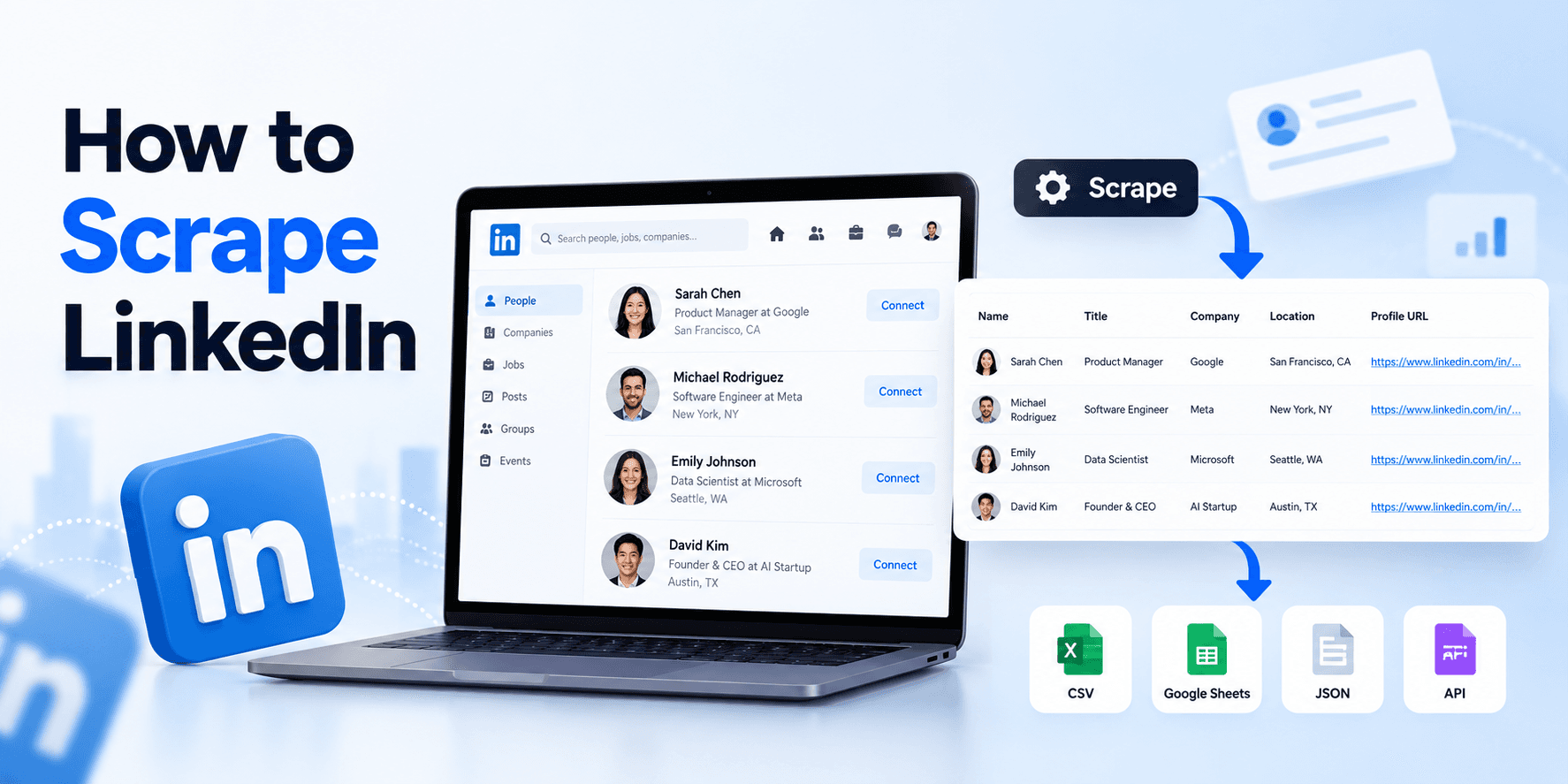
In this guide, you’ll learn how to scrape LinkedIn data with Python, JavaScript, or TypeScript: retrieve profile details, find available emails and phone numbers, collect company data, search jobs, extract posts, find leads, and export your results to CSV or Excel.
We’ll start with browser automation, show you the actual results and screenshots from our profile tests, then walk through an API workflow for collecting larger datasets.
Before you scrape LinkedIn: requirements and setup
Start with one profile URL and the fields you actually need. For the examples below, you’ll need:
- A Windows, Mac, or Ubuntu computer with a browser and internet access. You can use the Windows Subsystem for Linux (WSL) to run the commands shown below.
- Python 3.11+ or Node.js 24, depending on your language.
- A code editor, terminal, and a public LinkedIn profile URL.
- A proxy (optional).
Build a LinkedIn profile scraper with Playwright
We’ll use Playwright to open Chromium, visit a public profile, and extract the name and visible headline with CSS selectors. This makes the extraction easy to inspect: you keep both the page the code saw and the data it saved.
The scraper also inspects the final URL and canonical profile URL before accepting the name. This is important since a request may land on a different profile from the one you asked for.
Extract LinkedIn profile data with Python
Applies to every example on this page
Install Playwright and Chromium, then use the Python example below. It saves a screenshot so you can check the result with the JSON output.
python -m pip install 'playwright==1.64.1'python -m playwright install chromiumimport argparseimport jsonimport osimport refrom pathlib import Pathfrom urllib.parse import quote, unquote, urlsplitfrom playwright.sync_api import sync_playwrightdef canonical_profile_url(value): parts = urlsplit(value) if (parts.scheme != "https" or parts.hostname not in {"linkedin.com", "www.linkedin.com"} or parts.username or parts.password or parts.port not in (None, 443)): raise ValueError("Use an HTTPS linkedin.com/in/ profile URL.") match = re.fullmatch(r"/in/([^/]+)/?", parts.path) if not match: raise ValueError("Expected one public profile slug.") slug = unquote(match[1]) if any(c in slug for c in "/?#\\") or any(ord(c) < 32 for c in slug): raise ValueError("Invalid profile slug.") return "https://www.linkedin.com/in/" + quote(slug, safe="-._~") + "/"def main(): parser = argparse.ArgumentParser() parser.add_argument("--url", required=True) parser.add_argument("--headed", action="store_true") parser.add_argument("--screenshot", default="output/browser-profile.png") args = parser.parse_args() target = canonical_profile_url(args.url) proxy = None if os.getenv("PROXY_SERVER"): proxy = {"server": os.environ["PROXY_SERVER"]} for field in ("username", "password"): if os.getenv("PROXY_" + field.upper()): proxy[field] = os.environ["PROXY_" + field.upper()] result = { "http_status": None, "status": "unprocessed", "profile_url": target, "name": None, "headline": None, "source": "visible_public_profile_card", } with sync_playwright() as p: browser = p.chromium.launch(headless=not args.headed, proxy=proxy) try: page = browser.new_page(viewport={"width": 1440, "height": 1000}) page.set_default_timeout(10000) try: response = page.goto(args.url, wait_until="domcontentloaded", timeout=40000) result["http_status"] = response.status if response else None path = urlsplit(page.url).path.lower() if result["http_status"] != 200 or re.search(r"/(authwall|login|checkpoint)(/|$)", path): result["status"] = "access_failure" else: name = page.locator("h1.top-card-layout__title") canonical = page.locator('link[rel="canonical"]').first.get_attribute("href") if (not canonical or canonical_profile_url(canonical) != target or name.count() != 1 or not name.is_visible()): result["status"] = "identity_not_matched" else: result["name"] = name.inner_text().strip() or None headline = page.locator("h2.top-card-layout__headline") if headline.count() == 1 and headline.is_visible(): text = headline.inner_text().strip() result["headline"] = text if text and "*" not in text else None result["status"] = "partial" if result["name"] else "incomplete" except Exception as exc: result.update(status="navigation_error", error_type=type(exc).__name__) try: screenshot = Path(args.screenshot) screenshot.parent.mkdir(parents=True, exist_ok=True) page.screenshot(path=str(screenshot)) except Exception: result["screenshot_status"] = "capture_failed" finally: browser.close() print(json.dumps(result, indent=2)) return 0 if result["status"] == "partial" else 2if __name__ == "__main__": raise SystemExit(main())python browser_profile.py --url 'https://www.linkedin.com/in/kentcdodds/'Add --headed to watch the browser. For an optional proxy, set PROXY_SERVER and any required PROXY_USERNAME and PROXY_PASSWORD in your terminal.
JavaScript
Prefer Node.js? Install Playwright, then save this complete example as browser_profile.mjs. It also reads the optional proxy variables above.
npm install --no-save --package-lock=false playwright@1.64.1npx playwright install chromiumexport LINKEDIN_PROFILE_URL='https://www.linkedin.com/in/kentcdodds'import { mkdir } from 'node:fs/promises';import { dirname } from 'node:path';import { chromium } from 'playwright';function canonicalProfileUrl(value) { const url = new URL(value); if (url.protocol !== 'https:' || !['linkedin.com', 'www.linkedin.com'].includes(url.hostname) || url.username || url.password || url.port) { throw new Error('Use an HTTPS linkedin.com/in/ public profile URL.'); } const match = url.pathname.match(/^\/in\/([^/]+)\/?$/); if (!match) throw new Error('Expected exactly one public profile slug.'); const slug = decodeURIComponent(match[1]); if (/[/?#\\\u0000-\u001f]/.test(slug)) throw new Error('Invalid profile slug.'); return `https://www.linkedin.com/in/${encodeURIComponent(slug)}/`;}async function readPublicProfile(url, options = {}) { const target = canonicalProfileUrl(url); const screenshot = options.screenshot ?? 'output/browser-profile-node.png'; const result = { http_status: null, status: 'unprocessed', profile_url: target, name: null, headline: null, source: 'visible_public_profile_card', }; const browser = await chromium.launch({ headless: !options.headed, proxy: options.proxy, }); try { const page = await browser.newPage({ viewport: { width: 1440, height: 1000 } }); page.setDefaultTimeout(10000); try { const response = await page.goto(url, { waitUntil: 'domcontentloaded', timeout: 40000 }); result.http_status = response?.status() ?? null; const path = new URL(page.url()).pathname.toLowerCase(); if (result.http_status !== 200 || /\/(authwall|login|checkpoint)(\/|$)/.test(path)) { result.status = 'access_failure'; } else { const name = page.locator('h1.top-card-layout__title'); const canonical = await page.locator('link[rel="canonical"]').first().getAttribute('href'); if (!canonical || canonicalProfileUrl(canonical) !== target || await name.count() !== 1 || !await name.isVisible()) { result.status = 'identity_not_matched'; } else { result.name = (await name.innerText()).trim() || null; const headline = page.locator('h2.top-card-layout__headline'); if (await headline.count() === 1 && await headline.isVisible()) { const text = (await headline.innerText()).trim(); result.headline = text && !text.includes('*') ? text : null; } result.status = result.name ? 'partial' : 'incomplete'; } } } catch (error) { result.status = 'navigation_error'; result.error_type = error instanceof Error ? error.name : 'UnknownError'; } // A failed diagnostic capture must not discard the extraction outcome. try { await mkdir(dirname(screenshot), { recursive: true }); await page.screenshot({ path: screenshot }); } catch { result.screenshot_status = 'capture_failed'; } return result; } finally { await browser.close(); }}const url = process.env.LINKEDIN_PROFILE_URL;if (!url) throw new Error('Set LINKEDIN_PROFILE_URL.');const result = await readPublicProfile(url, { headed: process.env.HEADED === '1', screenshot: 'output/browser-profile-js.png', proxy: process.env.PROXY_SERVER ? { server: process.env.PROXY_SERVER, username: process.env.PROXY_USERNAME, password: process.env.PROXY_PASSWORD, } : undefined,});console.log(JSON.stringify(result, null, 2));process.exitCode = result.status === 'partial' ? 0 : 2;node browser_profile.mjsSet HEADED=1 to display the browser.
TypeScript
Install Playwright with the commands above, then save this version as browser_profile.mts. All functions and types are included; Node.js 24 can run it directly.
import { mkdir } from 'node:fs/promises';import { dirname } from 'node:path';import { chromium } from 'playwright';interface BrowserOptions { headed?: boolean; screenshot?: string; proxy?: { server: string; username?: string; password?: string };}interface BrowserProfile { http_status: number | null; status: 'unprocessed' | 'access_failure' | 'identity_not_matched' | 'partial' | 'incomplete' | 'navigation_error'; profile_url: string; name: string | null; headline: string | null; source: 'visible_public_profile_card'; error_type?: string; screenshot_status?: 'capture_failed';}function canonicalProfileUrl(value: string): string { const url = new URL(value); if (url.protocol !== 'https:' || !['linkedin.com', 'www.linkedin.com'].includes(url.hostname) || url.username || url.password || url.port) { throw new Error('Use an HTTPS linkedin.com/in/ public profile URL.'); } const match = url.pathname.match(/^\/in\/([^/]+)\/?$/); if (!match) throw new Error('Expected exactly one public profile slug.'); const slug = decodeURIComponent(match[1]); if (/[/?#\\\u0000-\u001f]/.test(slug)) throw new Error('Invalid profile slug.'); return `https://www.linkedin.com/in/${encodeURIComponent(slug)}/`;}async function readPublicProfile(url: string, options: BrowserOptions = {}): Promise<BrowserProfile> { const target = canonicalProfileUrl(url); const screenshot = options.screenshot ?? 'output/browser-profile-node.png'; const result: BrowserProfile = { http_status: null, status: 'unprocessed', profile_url: target, name: null, headline: null, source: 'visible_public_profile_card', }; const browser = await chromium.launch({ headless: !options.headed, proxy: options.proxy, }); try { const page = await browser.newPage({ viewport: { width: 1440, height: 1000 } }); page.setDefaultTimeout(10000); try { const response = await page.goto(url, { waitUntil: 'domcontentloaded', timeout: 40000 }); result.http_status = response?.status() ?? null; const path = new URL(page.url()).pathname.toLowerCase(); if (result.http_status !== 200 || /\/(authwall|login|checkpoint)(\/|$)/.test(path)) { result.status = 'access_failure'; } else { const name = page.locator('h1.top-card-layout__title'); const canonical = await page.locator('link[rel="canonical"]').first().getAttribute('href'); if (!canonical || canonicalProfileUrl(canonical) !== target || await name.count() !== 1 || !await name.isVisible()) { result.status = 'identity_not_matched'; } else { result.name = (await name.innerText()).trim() || null; const headline = page.locator('h2.top-card-layout__headline'); if (await headline.count() === 1 && await headline.isVisible()) { const text = (await headline.innerText()).trim(); result.headline = text && !text.includes('*') ? text : null; } result.status = result.name ? 'partial' : 'incomplete'; } } } catch (error) { result.status = 'navigation_error'; result.error_type = error instanceof Error ? error.name : 'UnknownError'; } // A failed diagnostic capture must not discard the extraction outcome. try { await mkdir(dirname(screenshot), { recursive: true }); await page.screenshot({ path: screenshot }); } catch { result.screenshot_status = 'capture_failed'; } return result; } finally { await browser.close(); }}const url = process.env.LINKEDIN_PROFILE_URL;if (!url) throw new Error('Set LINKEDIN_PROFILE_URL.');const result = await readPublicProfile(url, { headed: process.env.HEADED === '1', screenshot: 'output/browser-profile-ts.png', proxy: process.env.PROXY_SERVER ? { server: process.env.PROXY_SERVER, username: process.env.PROXY_USERNAME, password: process.env.PROXY_PASSWORD, } : undefined,});console.log(JSON.stringify(result, null, 2));process.exitCode = result.status === 'partial' ? 0 : 2;export LINKEDIN_PROFILE_URL='https://www.linkedin.com/in/kentcdodds/'node browser_profile.mtsThe result from our Python run
{ "http_status": 200, "status": "partial", "profile_url": "https://www.linkedin.com/in/kentcdodds/", "name": "Kent C. Dodds", "headline": null, "source": "visible_public_profile_card"}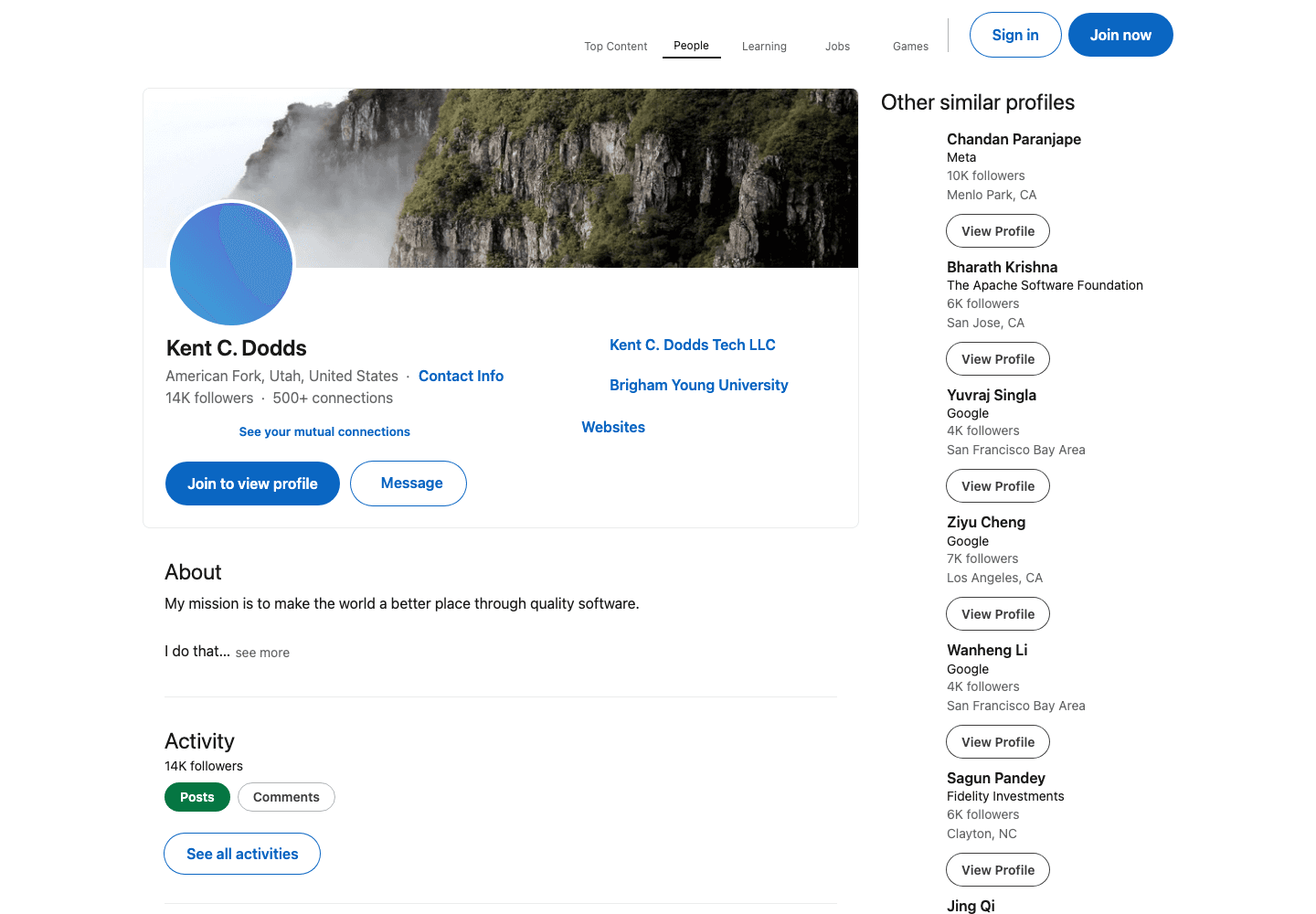
Our run produced a partial record: the name is present, but the headline is null. Be sure to account for partial records in your dataset. One page loading successfully does not mean all fields have been collected.
The saved screenshot shows more fields in the same profile card. These include location, education, website links, About text, followers, and connection counts. To extract these, review the returned HTML and add selectors for the elements present.
Python: parse more profile fields
This standalone example opens the profile and parses its HTML with Beautiful Soup. The selectors come from our saved page; adjust them if LinkedIn changes its layout.
python -m pip install beautifulsoup4import jsonimport osimport refrom urllib.parse import parse_qs, quote, unquote, urljoin, urlsplitfrom bs4 import BeautifulSoupfrom playwright.sync_api import sync_playwrightdef canonical_profile_url(value): parts = urlsplit(value) if (parts.scheme != "https" or parts.hostname not in {"linkedin.com", "www.linkedin.com"} or parts.username or parts.password or parts.port not in (None, 443)): raise ValueError("Use an HTTPS linkedin.com/in/ profile URL.") match = re.fullmatch(r"/in/([^/]+)/?", parts.path) if not match: raise ValueError("Expected one public profile slug.") slug = unquote(match[1]) if any(c in slug for c in "/?#\\") or any(ord(c) < 32 for c in slug): raise ValueError("Invalid profile slug.") return "https://www.linkedin.com/in/" + quote(slug, safe="-._~") + "/"def parse_profile(html): soup = BeautifulSoup(html, "html.parser") def text(selector): node = soup.select_one(selector) return node.get_text(" ", strip=True) or None if node else None header = soup.select_one(".profile-info-subheader") labels = list(header.stripped_strings) if header else [] websites = [] for link in soup.select('[data-section="websites"] a[href]'): url = urljoin("https://www.linkedin.com", link["href"]) parts = urlsplit(url) if parts.hostname == "www.linkedin.com" and parts.path == "/redir/redirect": url = parse_qs(parts.query).get("url", [url])[0] if urlsplit(url).scheme in {"http", "https"}: websites.append(url) return { "location": text(".profile-info-subheader > span"), "education": text('[data-section="educationsDetails"] .top-card-link__description'), "websites": list(dict.fromkeys(websites)), "about": text('[data-section="summary"] .core-section-container__content > div:first-child'), "followers": next((value for value in labels if value.endswith(" followers")), None), "connections": next((value for value in labels if value.endswith(" connections")), None), }url = os.getenv("LINKEDIN_PROFILE_URL", "https://www.linkedin.com/in/kentcdodds/")target = canonical_profile_url(url)proxy = Noneif os.getenv("PROXY_SERVER"): proxy = {"server": os.environ["PROXY_SERVER"]} for field in ("username", "password"): if os.getenv("PROXY_" + field.upper()): proxy[field] = os.environ["PROXY_" + field.upper()]with sync_playwright() as p: browser = p.chromium.launch(proxy=proxy) try: page = browser.new_page() page.set_default_timeout(10000) response = page.goto(url, wait_until="domcontentloaded", timeout=40000) path = urlsplit(page.url).path.lower() if not response or response.status != 200 or re.search(r"/(authwall|login|checkpoint)(/|$)", path): raise RuntimeError("Profile unavailable; no data extracted.") canonical = page.locator('link[rel="canonical"]').first.get_attribute("href") name = page.locator("h1.top-card-layout__title") if (not canonical or canonical_profile_url(canonical) != target or name.count() != 1 or not name.is_visible()): raise RuntimeError("Could not match the requested profile.") result = {"profile_url": target, "name": name.inner_text().strip()} result.update(parse_profile(page.content())) print(json.dumps(result, indent=2, ensure_ascii=False)) finally: browser.close()Save it as profile_fields.py and run:
python profile_fields.pyMissing text fields stay None, and counts keep their displayed values, such as 14K followers and 500+ connections. The About text may be truncated; this only extracts what the returned HTML provides.
Why LinkedIn scraping hits login walls
The code above worked, but when we tried another profile URL, LinkedIn returned HTTP 999 and a sign-up wall instead of profile data.
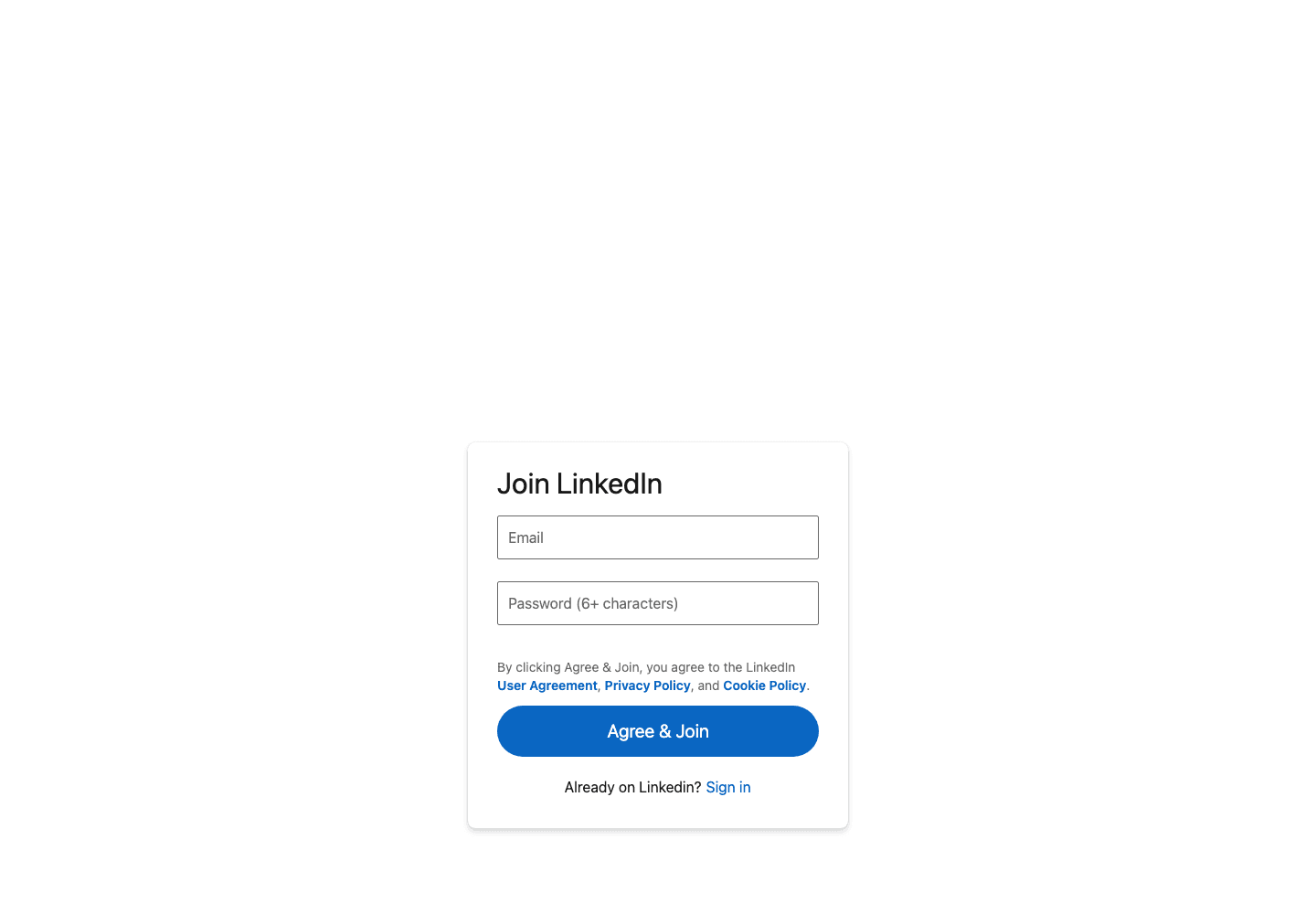
When you scrape a page, validate the response before storing it. Keep an access failure separate from a profile with empty optional fields. Changing a selector won’t recover a name from a sign-up page.
A similar frustration appears in this r/webscraping discussion, where u/bar_pet wrote:
LinkedIn is one of the hardest to scrape real-time.
That’s one commenter’s assessment. Our two profile attempts illustrate the practical issue: a single usable result doesn’t tell you whether the next URL will return usable data.
Why browser scraping gets harder at scale
Access is only one part of the problem. Browser-based web scraping also has a resource cost: each Chromium worker needs memory and CPU to load and render pages, including pages that end at a login wall.
We compared Python requests with a reused browser against a local static HTML fixture on an Apple M2 Max, using 5 runs per client. This isolates client overhead. It doesn’t measure how fast either approach can scrape LinkedIn.
| Measured metric | Python requests | Reused browser |
|---|---|---|
| Client startup | 34.788 ms | 295.464 ms |
| First request + extraction | 1.840 ms | 22.574 ms |
| Warm latency: median of run-level p50s | 0.432 ms | 14.175 ms |
| Sampled peak process-tree RSS | 34.562 MiB | 448.812 MiB |
| Sampled process-tree CPU time per run | 0.095 s | 0.734 s |
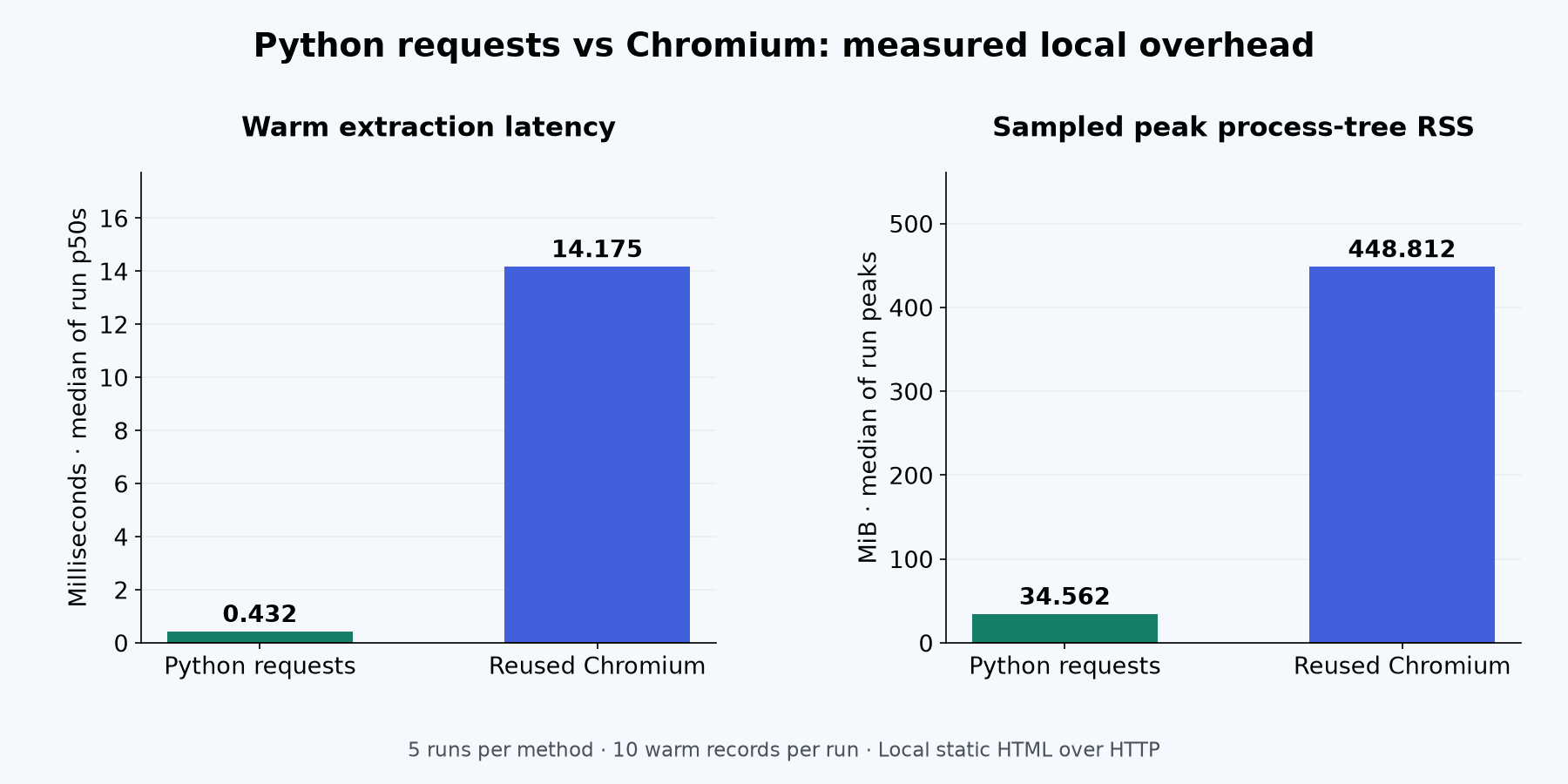
In this test, Chromium used about 13× the peak memory and 7.7× the CPU time of Python requests. That overhead matters when you add workers, alongside the costs of proxies, retries and maintaining the scraper.
If you mainly need the returned fields, an API can remove browser workers from your application. You still need to handle missing values, request failures and credit usage. Here’s how that workflow looks with EnvoAPI.
Use a LinkedIn scraper API to retrieve profile data
With EnvoAPI’s LinkedIn Profile API, you send a profile URL and receive JSON with fields such as fullName and headline. Your application uses an API key; this request doesn’t require your LinkedIn account, cookies or a proxy.
EnvoAPI is an independent, third-party service. It is separate from the official LinkedIn API and its access permissions, which is why it’s often called an unofficial LinkedIn API.
We’d test a few sample LinkedIn profiles before scraping in bulk. Check whether the LinkedIn data returned covers your use case, how incomplete fields are represented and what each lookup costs. Compare that with the browser, proxy and maintenance work your application would otherwise need.
Get your EnvoAPI key
Create an account to get 100 free credits, then generate an API key in the dashboard.
Set the key in your macOS/Linux terminal, or in WSL on Windows. Replace the placeholder with your own key and keep it out of source control. The command below sets it as an environment variable:
export ENVO_API_KEY='your_envoapi_api_key'Send a profile URL with cURL
This cURL command sends a profile URL to the profile details endpoint, saves the response to profile-response.json, and prints the HTTP status and elapsed time. Start here before wiring the request into a larger script:
curl --get 'https://api.envoapi.com/v1/profiles/details/by-url' \ --header "Authorization: Bearer $ENVO_API_KEY" \ --header 'Accept: application/json' \ --data-urlencode 'url=https://www.linkedin.com/in/kentcdodds/' \ --connect-timeout 10 --max-time 60 \ --silent --show-error --fail-with-body \ --output profile-response.json \ --write-out 'HTTP %{http_code}\nTotal time: %{time_total}s\n'What we got back
Our saved request returned HTTP 200 in about 2.15 seconds and used 1 credit. The response included About text, work experience, education, skills and languages. We’ve shortened the arrays and omitted some fields below so it’s easier to scan.
{ "data": { "fullName": "Kent C. Dodds", "firstName": "Kent C.", "lastName": "Dodds", "username": "kentcdodds", "headline": "Software Engineer and Educator", "linkedinUrl": "https://www.linkedin.com/in/kentcdodds/", "about": "My mission is to make the world a better place through quality software.I do that by helping developers build better software and better products.That's been my full-time work for years: teaching, building open source, recording workshops and podcasts, and sharing what I'm learning as I go. These days I'm especially focused on product engineering: the judgment, constraints, and hard questions about what should be built before we start writing code.If you've used Testing Library, taken Epic React or Epic Web, or run into something I wrote about testing, React, or AI-assisted development, you may already know my work. I'm still making more of it.LinkedIn is one of the places I share what I create: articles, courses, podcasts, talks, and whatever I'm experimenting with next. My home base is https://kentcdodds.com and that's the easiest way to find everything in one place.If something here is useful to you, I'm glad! If you want to follow along, you're in the right place.", "location": { "displayName": "American Fork, Utah, United States", "locality": "American Fork, Utah", "country": "United States", "countryCode": "US" }, "industry": { "publicId": "industry_2hxvE1", "name": "Information Technology & Services" }, "counts": { "followerCount": 14101, "connectionCount": 1490 }, "experience": [ { "title": "Software Engineer Educator", "company": { "name": "Kent C. Dodds Tech LLC", "linkedinUrl": "https://www.linkedin.com/company/kentcdodds/", "employeeCountRange": { "start": 2, "end": 10 } }, "location": "Utah, United States", "dateRange": { "start": { "year": 2019, "month": 2, "day": null }, "end": null, "isCurrent": true } } ], "education": [ { "school": { "name": "Brigham Young University" }, "degree": "Master of Science Information Systems (MISM)", "fieldOfStudy": "Web Development", "dateRange": { "start": { "year": 2007, "month": null, "day": null }, "end": { "year": 2014, "month": null, "day": null }, "isCurrent": false } } ], "skills": [ "Web Applications", "Web Development", "JavaScript", "Node.js", "HTML", "CSS", "HTML 5", "Programming", "jQuery", "OS X" ], "languages": [ { "name": "American Sign Language", "proficiency": "elementary" }, { "name": "English", "proficiency": "nativeOrBilingual" } ] }, "meta": { "creditCost": 1, "sections": { "counts": "complete", "experience": "complete", "education": "complete", "skills": "incomplete", "certifications": "complete", "organizations": "complete", "languages": "complete", "courses": "incomplete", "volunteerExperience": "complete", "honors": "complete" }, "skills": { "hasMore": true } }}In meta.sections, most sections are complete, but skills and courses are incomplete, and meta.skills.hasMore is true. Long lists like these are cut short in the profile response. To get the full list, use the dedicated endpoint for that section, which supports pagination.
Extract LinkedIn data with Python, JavaScript or TypeScript
EnvoAPI’s SDK lets you call named methods instead of assembling endpoint paths by hand. It also exposes parameters and response fields to your editor, which helps when you’re mapping LinkedIn data into your own schema and speeds up development.
Choose your language and reuse the ENVO_API_KEY you set earlier. Each example makes the same profile request.
Applies to every example on this page
Python
With Python 3.11 or later, install the SDK:
python -m pip install envoapiPass the profile URL to get_details_by_url(), then read the fields from the returned model:
import osfrom envoapi import EnvoAPIwith EnvoAPI(api_key=os.environ["ENVO_API_KEY"]) as client: response = client.profiles.get_details_by_url( url="https://www.linkedin.com/in/kentcdodds/", ) profile = response.body.data print(profile.full_name, profile.headline)JavaScript
Install the npm package:
npm install envoapiSave the example as profile-sdk.mjs, then run node profile-sdk.mjs:
import { EnvoAPI } from 'envoapi';const client = new EnvoAPI({ apiKey: process.env.ENVO_API_KEY });const { body } = await client.profiles.getDetailsByUrl({ url: 'https://www.linkedin.com/in/kentcdodds/',});console.log(body.data.fullName, body.data.headline);TypeScript
Install the same package for TypeScript. It includes types for method parameters and response fields:
npm install envoapiSave this as profile-sdk.mts. With Node.js 24, run node profile-sdk.mts:
import { EnvoAPI } from 'envoapi';const client = new EnvoAPI({ apiKey: process.env.ENVO_API_KEY! });const { body } = await client.profiles.getDetailsByUrl({ url: 'https://www.linkedin.com/in/kentcdodds/',});console.log(body.data.fullName, body.data.headline);The method reference lists the other lookups you can use in your project. For a longer-running job, save completed responses and record failures separately so you can resume without repeating every successful request.
Extract a name from a LinkedIn profile URL
Use the SDK and API key from the previous section:
Applies to every example on this page
Python
import osfrom envoapi import EnvoAPIwith EnvoAPI(api_key=os.environ["ENVO_API_KEY"]) as client: response = client.profiles.get_details_by_url( url="https://www.linkedin.com/in/kentcdodds/", ) print(response.body.data.full_name)JavaScript
import { EnvoAPI } from 'envoapi';const client = new EnvoAPI({ apiKey: process.env.ENVO_API_KEY });const { body } = await client.profiles.getDetailsByUrl({ url: 'https://www.linkedin.com/in/kentcdodds/',});console.log(body.data.fullName);TypeScript
import { EnvoAPI } from 'envoapi';const client = new EnvoAPI({ apiKey: process.env.ENVO_API_KEY! });const { body } = await client.profiles.getDetailsByUrl({ url: 'https://www.linkedin.com/in/kentcdodds/',});console.log(body.data.fullName);Besides the fullName, the same response in body.data includes a headline, location, About text, work experience, education, skills, languages and follower or connection counts. Select the fields your application needs and preserve missing values.
Already have the response? Read its name field directly. There’s no reason to spend another request just to retrieve a value you’ve already saved.
Extract emails and phone numbers from LinkedIn
A complete-looking profile can still have no contact data. We’d work through the available sources: profile text, contact fields, linked websites, then email discovery. We’ll also show where each email comes from, so you know whether it was publicly listed or found through other methods.
Find emails and phone numbers in profile text
People sometimes put contact details in their About text, a description or an experience entry. The following regex looks for email addresses and possible phone numbers in that text. The or [] also handles an experience section returned as null:
import osimport refrom envoapi import EnvoAPIprofile_url = "https://www.linkedin.com/in/kentcdodds/"with EnvoAPI(api_key=os.environ["ENVO_API_KEY"]) as client: profile = client.profiles.get_details_by_url(url=profile_url).body.to_dict()["data"]text = "\n".join([profile.get("about") or ""] + [ role.get("description") or "" for role in (profile.get("experience") or [])])emails = sorted(set(re.findall(r"[\w.+-]+@[\w-]+(?:\.[\w-]+)+", text)))phone_matches = re.findall(r"(?<!\w)\+?\d[\d(). \t-]{5,}\d(?!\w)", text)phones = sorted({p for p in phone_matches if 7 <= len(re.sub(r"\D", "", p)) <= 15})print({"emails": emails, "phone_candidates": phones})Check the LinkedIn profile contact details
If the text contains no contact details, try the profile contact endpoint. Public email addresses and phone numbers appear in emailAddress and phoneNumbers; linked sites appear in websites. This snippet continues from the previous example and reuses profile_url:
with EnvoAPI(api_key=os.environ["ENVO_API_KEY"]) as client: contact = client.profiles.get_contact_by_url(url=profile_url).body.to_dict()["data"]print(contact.get("emailAddress"))print(contact.get("phoneNumbers"))print(contact.get("websites"))Extract email addresses from the profile’s website
Next, check contact["websites"] or the profile’s About text for a personal or business website. Send a request to EnvoAPI’s website email endpoint to find email addresses published on that site. Replace the example URL below:
curl --get 'https://api.envoapi.com/v1/websites/emails' \ --header "Authorization: Bearer $ENVO_API_KEY" \ --data-urlencode 'url=https://example.org/' \ --silent --show-error --fail-with-bodyFind a work email using the company domain
The email finder can use a person’s name and employer’s domain to look for a work address. Confirm the current employer and its website first. A LinkedIn company page URL isn’t an email domain. Replace these placeholders:
curl --get 'https://api.envoapi.com/v1/emails/find' \ --header "Authorization: Bearer $ENVO_API_KEY" \ --data-urlencode 'firstName=FIRST_NAME' \ --data-urlencode 'lastName=LAST_NAME' \ --data-urlencode 'domain=example.com' \ --silent --show-error --fail-with-bodyThe finder tries common address patterns and checks them with the mail server.
Search for public contact details with ChatGPT or Claude
If you still need another source, use ChatGPT, Claude or another AI assistant with web search enabled. Give it the profile URL, name, employer and known website, then ask for published business contact details with evidence. Here’s a prompt you can adapt:
Search the web for publicly listed business emails or phone numbers associated with [profile URL]. Use [name], [employer] and [website] to check the identity. Return each contact with its source URL and supporting text. Label company switchboards and shared inboxes separately. Do not invent contacts or treat guessed email patterns as confirmed. If you find nothing, say so.
Open the cited pages and check the identity yourself. A similar name or a matching company isn’t enough on its own. Use the assistant to find sources, then decide whether those sources support adding the contact to your record.
Verify email validity, disposable domains and catch-all status
Once you have an email address, use the email verification endpoint. Replace the example with your candidate:
curl --get 'https://api.envoapi.com/v1/emails/verify' \ --header "Authorization: Bearer $ENVO_API_KEY" \ --data-urlencode '[email protected]' \ --silent --show-error --fail-with-bodyCheck data.status and data.reason for the mail-server result, plus isDisposable and isCatchAll. A valid status means the server accepted the address during the check. A catch-all server may accept nonexistent mailboxes too. unverifiable means the check couldn’t confirm the address.
Find LinkedIn leads with people and company search
For LinkedIn lead generation, start with a useful definition of a prospect: a job title, a type of business or a specific employer. EnvoAPI’s people and company search endpoints let you build a shortlist before retrieving details. We’d make that filtering step explicit in any sales prospecting workflow.
Find people who match your target
Send a relevant role or phrase to the people search endpoint. This example starts with a job title:
import osfrom envoapi import EnvoAPIwith EnvoAPI(api_key=os.environ["ENVO_API_KEY"]) as client: response = client.profiles.search_by_keyword( keywords="head of marketing", offset=0, ) print(response.body.to_dict()["data"])Review the returned profiles against your target role, employer and location. A keyword match is a starting point, so check the current role before keeping a result. Save the LinkedIn URLs for the profile and contact lookups.
Find companies in your target market
If your target is a type of business, start with the company search endpoint:
import osfrom envoapi import EnvoAPIwith EnvoAPI(api_key=os.environ["ENVO_API_KEY"]) as client: response = client.companies.search_by_keyword( keywords="software development", offset=0, ) print(response.body.to_dict()["data"])Shortlist relevant businesses, then search for people at those companies. Confirm each person’s current employer before joining their profile and company data.
Both examples request the first page. To continue, use meta.paging.nextOffset while hasMore is true, and set a page budget in your own script. The pagination guide explains how to follow the returned values. Don’t assume the first page contains every match.
Turn matching profiles into contactable leads
Once the shortlist is useful, connect it to the steps you’ve already built:
- Retrieve each person’s profile details to confirm their name, role and company.
- Follow the email and phone lookup steps: profile text, contact details, linked websites, then email discovery if needed.
- Check email verification results and keep each contact’s source.
- Export the leads to CSV or Excel or save them to your CRM, deduplicating by profile URL.
We’d spend enrichment credits on profiles that match the target, then review contact quality before exporting. For outreach, use the person’s role and company context to make the introduction relevant, follow the rules that apply to your campaign, and honor opt-outs.
Export LinkedIn data to CSV or Excel
Now turn the selected LinkedIn data into something you can review or import into a CRM. We’ll export the same lead records to CSV and Excel, keeping one row per person and the profile URL beside their contact details.
Prepare one row per lead
Use the profile and contact dictionaries from the contact workflow. Create leads once, then append a row after each person’s lookups. If you skipped a contact request, set contact = {} for that person so an earlier result can’t carry over.
import jsonleads = [] # Create this list once, before processing your profiles.# Add one row after each profile and contact lookup.leads.append({ "name": profile.get("fullName"), "headline": profile.get("headline"), "linkedin_url": profile.get("linkedinUrl"), "email": contact.get("emailAddress"), "phone_numbers": json.dumps(contact.get("phoneNumbers") or [], ensure_ascii=False),})Add any reviewed emails or phone numbers from the other lookup steps to the matching row, together with their source and verification result. Keep missing fields empty. The profile URL gives you a stable reference when two people share the same name.
Save the list as CSV and Excel
Install pandas and the Excel writer. This example uses DataFrame.map, which requires pandas 2.1 or later:
python -m pip install 'pandas>=2.1' openpyxlAfter collecting your rows, create the DataFrame and write both files:
import pandas as pddf = pd.DataFrame(leads).fillna("")# Keep external text as text when opened in a spreadsheet.def spreadsheet_text(value): if isinstance(value, str) and value.lstrip().startswith(("=", "+", "-", "@")): return "'" + value return valuedf = df.map(spreadsheet_text)df.to_csv("leads.csv", index=False, encoding="utf-8-sig")df.to_excel("leads.xlsx", index=False, sheet_name="LinkedIn leads", engine="openpyxl")You’ll get leads.csv and leads.xlsx in your current directory. index=False removes the extra row-number column; UTF-8 with a BOM helps Excel read the CSV’s text correctly. The text guard prefixes values that could otherwise be interpreted as spreadsheet formulas. Check how your CRM handles those prefixes before importing.
For export options, see the pandas references for CSV and Excel export.
For a larger list, save completed records as you go and deduplicate by profile URL before enrichment. Keeping the responses also lets you rebuild an export with different columns without repeating the data collection.
Scrape LinkedIn jobs: search listings and get job details
If you’re building a job board or tracking hiring, start with a search and retrieve details for the listings worth keeping. This separates discovery from the more detailed job data you’ll use in your application.
Search for jobs by keyword
Use job search to find LinkedIn job listings for a role. The endpoint also supports location and company filters: use a location ID or company IDs in the formats shown in the reference. A company slug isn’t the required company ID.
import osfrom envoapi import EnvoAPIwith EnvoAPI(api_key=os.environ["ENVO_API_KEY"]) as client: response = client.jobs.search(keywords="software engineer", start=0) print(response.body.to_dict()["data"])Search results include job URLs, titles, companies and locations. Choose a relevant listing and keep its URL for the details request.
Get the job description and application details
Run this example and paste a job URL from the search results. The job details endpoint returns the description and available seniority and application information:
import osfrom envoapi import EnvoAPIwith EnvoAPI(api_key=os.environ["ENVO_API_KEY"]) as client: response = client.jobs.get_details(url=input("LinkedIn job URL: ").strip()) print(response.body.to_dict()["data"])Save the listing URL and collection date with the details. That gives you a way to deduplicate jobs and track later changes. Treat each saved listing as a snapshot: the role may close or the page may disappear.
Scrape LinkedIn company data
Company data adds business context to a lead list: which organization the person works for and which account their record belongs to. Search for relevant companies first, then retrieve details for the shortlist.
Find companies by keyword
The company search endpoint takes keywords and supports filters such as location, industry and company size. Start with a phrase that describes your target market:
import osfrom envoapi import EnvoAPIwith EnvoAPI(api_key=os.environ["ENVO_API_KEY"]) as client: response = client.companies.search_by_keyword(keywords="software development", offset=0) print(response.body.to_dict()["data"])Get company details from a LinkedIn URL
Copy a company page URL from the results and paste it below. The company details endpoint returns the available business information for that URL:
import osfrom envoapi import EnvoAPIwith EnvoAPI(api_key=os.environ["ENVO_API_KEY"]) as client: response = client.companies.get_details_by_url(url=input("LinkedIn company URL: ").strip()) print(response.body.to_dict()["data"])Use the LinkedIn company URL to join a company record to your lead list. Matching on a name alone can mix up businesses with similar names. From there, find people at the companies you’ve shortlisted and follow the contact workflow.
Scrape LinkedIn posts and engagement data
LinkedIn post scraping can support topic research, company monitoring or a closer look at an industry conversation. Start with the question you want to answer, then collect the post data needed for it. A post’s reaction count and the underlying discussion need different requests.
Find posts by keyword or hashtag
Use post search with a phrase related to your research:
import osfrom envoapi import EnvoAPIwith EnvoAPI(api_key=os.environ["ENVO_API_KEY"]) as client: response = client.search.search_posts_by_keyword(keywords="developer tools", offset=0) print(response.body.to_dict()["data"])For a hashtag, use client.search.search_posts_by_hashtag(hashtag="devtools", offset=0). Both methods appear in the SDK method reference.
Retrieve a post and explore its engagement
Paste a matching LinkedIn post URL into the following example. The post details endpoint returns its text, author information and reaction counts:
import osfrom envoapi import EnvoAPIwith EnvoAPI(api_key=os.environ["ENVO_API_KEY"]) as client: response = client.posts.get_by_url(url=input("LinkedIn post URL: ").strip()) print(response.body.to_dict()["data"])To analyze the discussion or individual reactions, use the separate post comments and post reactions endpoints.
Frequently asked questions about LinkedIn scraping
Can LinkedIn detect scraping and ban your account?
Yes. LinkedIn says it continues to improve its defenses against scraping and unauthorized automation. Its policy on prohibited software warns that accounts using those tools may be restricted or shut down. If a scraping tool uses your logged-in LinkedIn account, that account is part of the risk. A Chrome extension is subject to the same policy.
Is it legal to scrape LinkedIn?
There isn’t a universal yes or no. LinkedIn’s terms of service prohibit unauthorized scraping, and legal obligations also depend on your location, access method and use of the data. Scraping publicly available data doesn’t remove privacy obligations. The UK ICO explains that public business contact details can still fall under data protection and direct-marketing rules. Review the requirements for your workflow before collecting or using data at scale.
What data can you scrape from LinkedIn?
Depending on availability and access, a LinkedIn scraper can retrieve profile names, headlines, locations, work experience, education and skills; company details; job listings; and posts with engagement data. Emails and phone numbers aren’t available for every profile. Inspect the actual fields and section status before deciding whether a response contains the data you need.
Does LinkedIn have an official scraping API?
LinkedIn offers APIs for specific integrations. Its Profile API, for example, requires approved access and has permission and data restrictions. Official LinkedIn API access doesn’t provide an unrestricted way to retrieve arbitrary profiles. EnvoAPI is a separate, third-party service — an unofficial LinkedIn API.
Can you scrape email addresses and phone numbers from LinkedIn?
Sometimes. Contact details may be published in profile text or returned by a contact lookup, but many profiles provide none. Follow the contact workflow above to check those fields and linked websites. Keep published addresses separate from inferred candidates, retain their sources and review verification results before using them.
Can you scrape LinkedIn without coding?
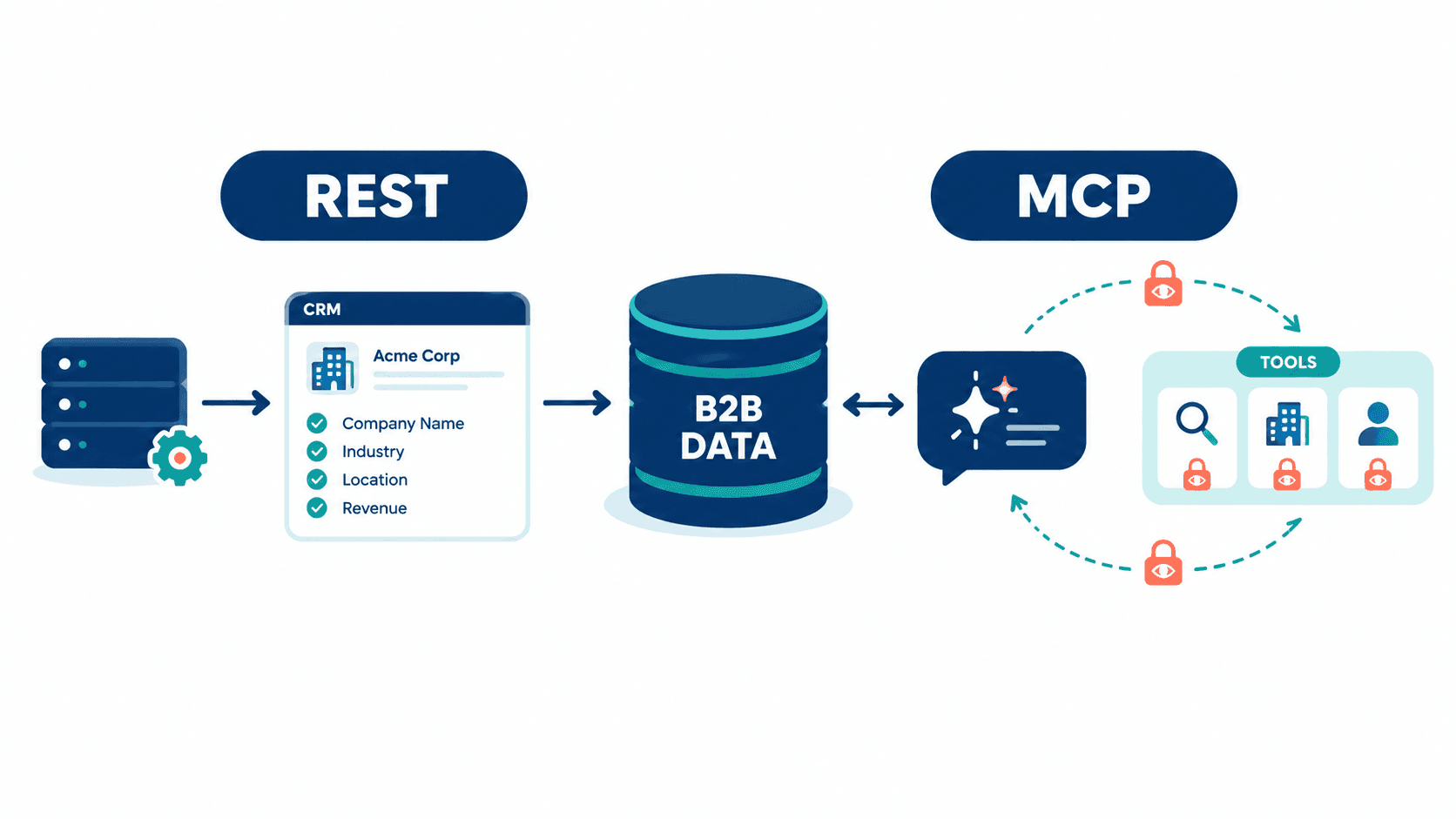
Yes. A no-code workflow can send profile URLs to an API through an HTTP request action, map the returned fields and save rows to a spreadsheet or CRM. You still need authentication and handling for missing data. If you choose a Chrome extension or another browser-based LinkedIn scraper, check whether it uses your signed-in session and review the account risks above. You can also use ChatGPT to extract LinkedIn data by connecting it to EnvoAPI through MCP.
How do you scrape LinkedIn using Python?
Use Playwright to open a page and extract visible fields, or call an API SDK to receive structured data. The Python browser example shows the first approach; the EnvoAPI SDK example shows the second. After checking the returned fields, export the results to CSV or Excel.
Can you scrape LinkedIn company pages and job postings?
Yes, subject to availability and access restrictions. With EnvoAPI, search for companies or jobs, then pass a matching URL to the relevant details endpoint. Keep separate schemas for company records and job postings so each export contains fields that make sense for that record type.