LinkedIn Authwall Bypass (2026): Get Public Profile Data
- EnvoAPI team · Developer relations
- Updated
- 7 min read

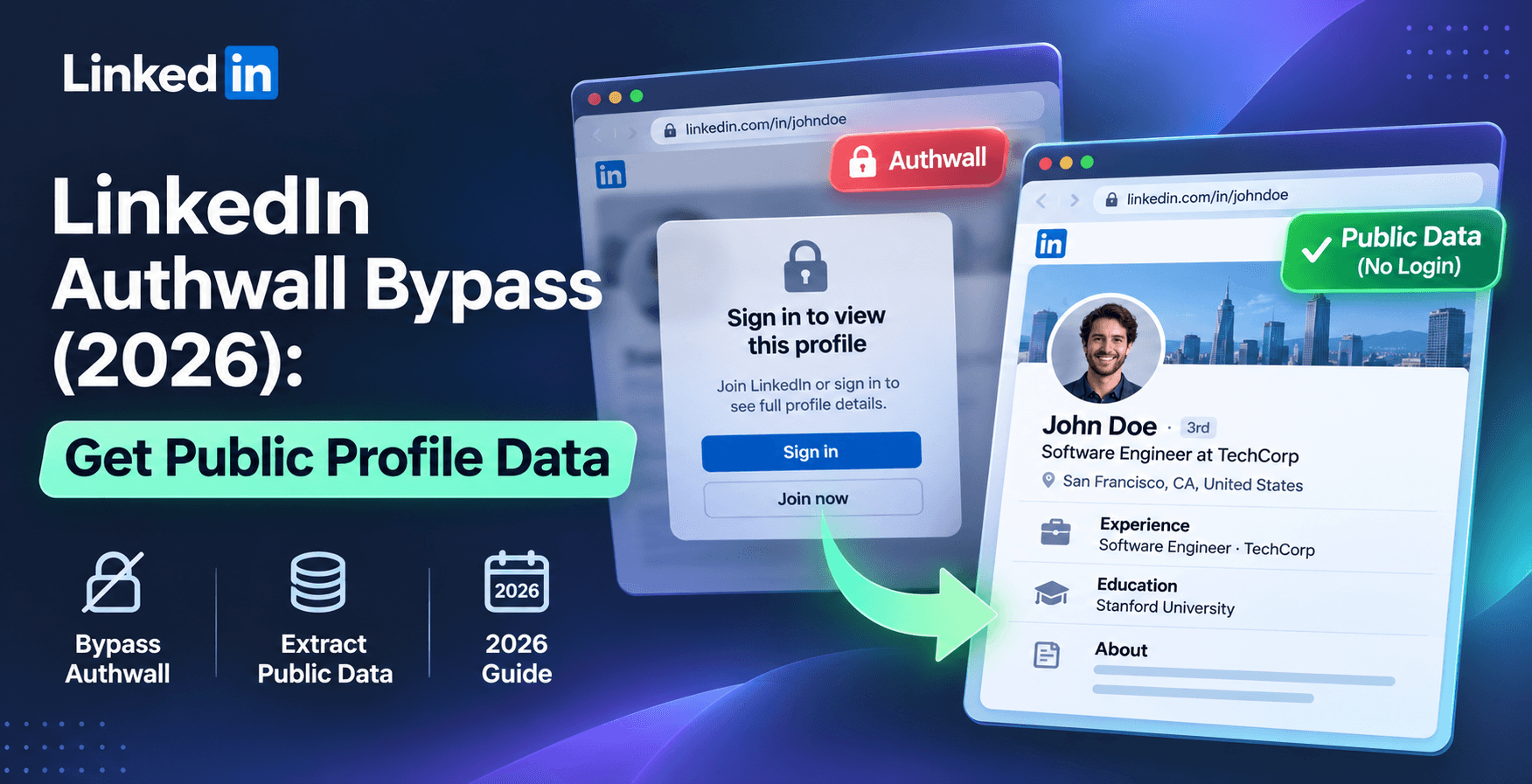
The LinkedIn authwall, also known as the LinkedIn login wall, is a screen that asks you to sign in or create an account before viewing a profile. In this guide, I’ll show you how to bypass it using EnvoAPI to access available public profile data without logging in to LinkedIn.
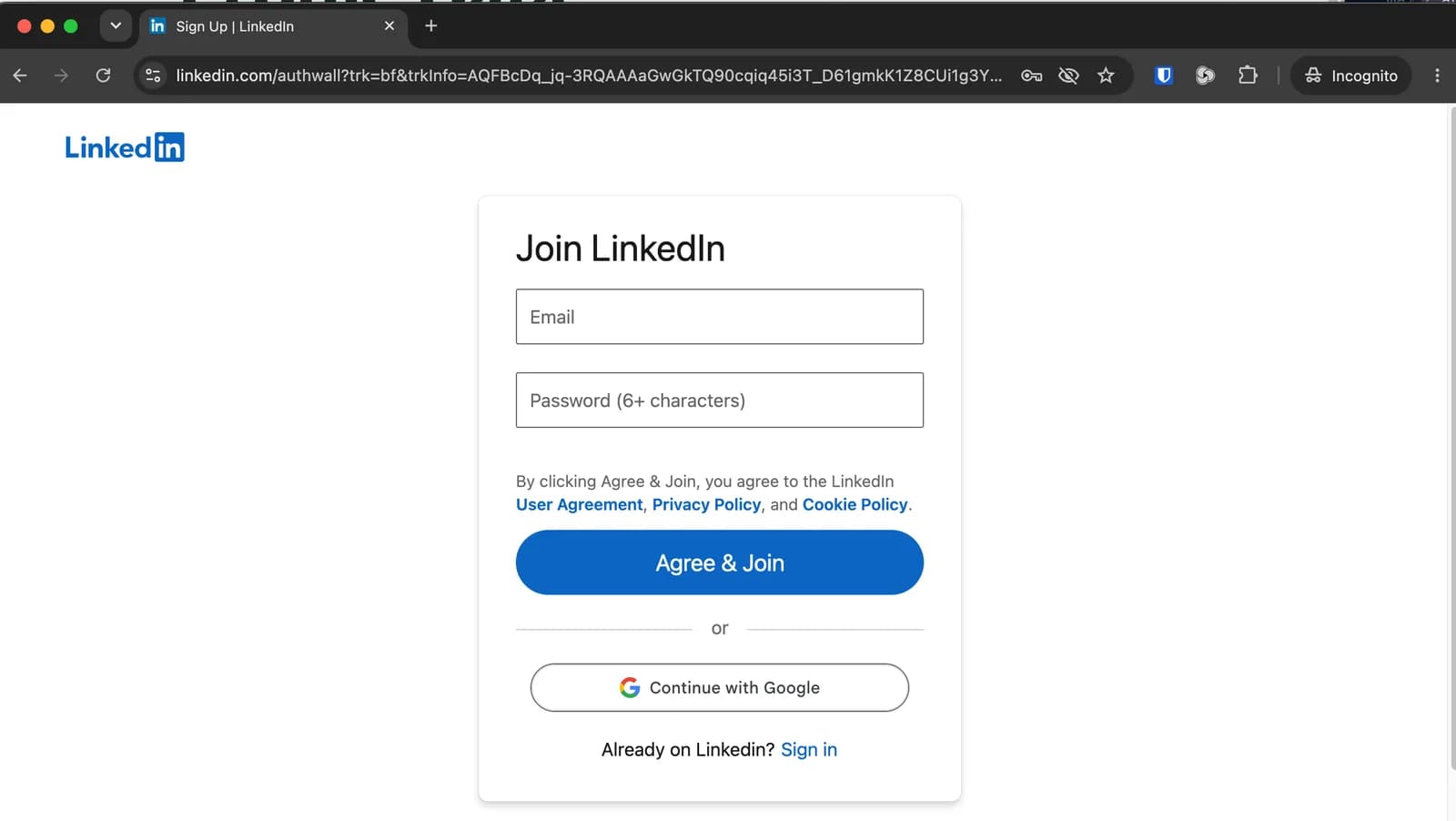
How to Bypass the LinkedIn Authwall for Public Profile Data
01Create Your EnvoAPI Key
Log in to your EnvoAPI account, or sign up if you don’t have one yet. Go to Dashboard → API Keys and click Create an API key. Your key will look like envo_xxxx. Copy it to use in the next step.
02Retrieve Public LinkedIn Profile Data
Choose either option below to retrieve available public profile data without logging in to LinkedIn: send a request with Python, or use the EnvoAPI Playground without writing any code.
Option 1: Send a Request with Python
Install the requests package:
python -m pip install requestsReplace envo_xxxx with the API key you created in step 1, and set PROFILE_URL to the LinkedIn profile you want to look up. Save the following example as profile_lookup.py:
import jsonimport requestsAPI_KEY = "envo_xxxx"PROFILE_URL = "https://www.linkedin.com/in/kentcdodds/"response = requests.get( "https://api.envoapi.com/v1/profiles/details/by-url", params={"url": PROFILE_URL}, headers={ "Authorization": f"Bearer {API_KEY}", "Accept": "application/json", }, timeout=30,)response.raise_for_status()print(json.dumps(response.json(), indent=2, ensure_ascii=False))Run python profile_lookup.py to print the JSON response. The request sends the profile URL to EnvoAPI’s Get Profile Details by URL endpoint and authenticates with your EnvoAPI key.
Beyond profile details, EnvoAPI also offers endpoints for company information, jobs, and LinkedIn posts. Explore the API documentation to see what else you can retrieve for your app.
Option 2: Use the EnvoAPI Playground Without Code
If you prefer to run the lookup without Python, use the Playground in your EnvoAPI dashboard:
- Go to Dashboard → Playground.
- Select Profile → Details, then choose URL under Identify by.
- Paste the LinkedIn profile URL into the URL field. For example, use
https://www.linkedin.com/in/kentcdodds/. - Click Send request and view the returned profile data in the Response panel.
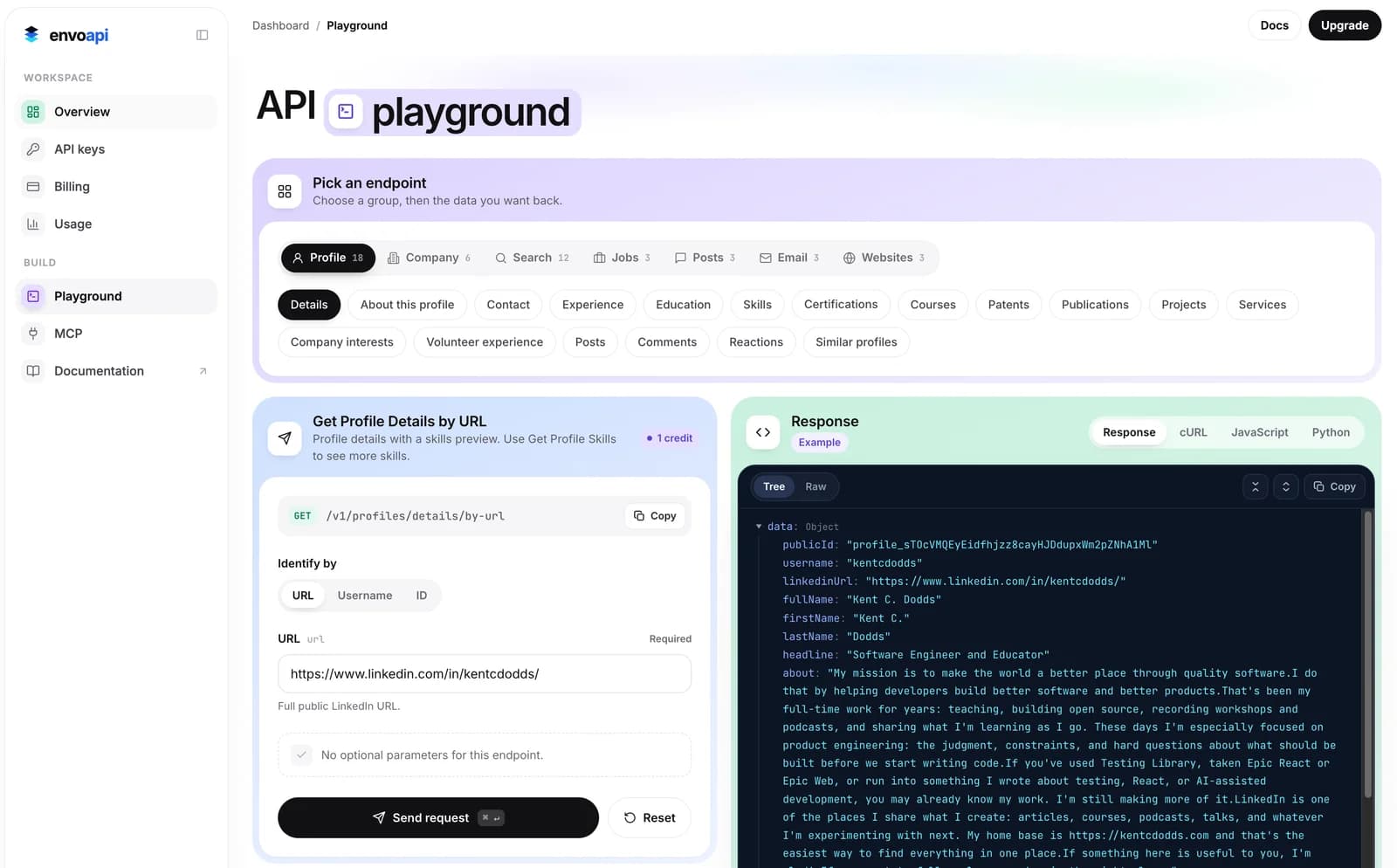
You can also test other endpoints in the Playground, such as About this profile, Similar profiles, and Company Details. Choose an endpoint, enter its required inputs, and click Send request to see the response.
03Save Your Results as CSV or Excel
The Python example above retrieves a JSON response, but only prints it to your terminal. Now, let’s save the profile data as CSV and Excel files so you can review it in a spreadsheet, share it with your team, or use it in your work.
We’ll start with one profile, then export multiple LinkedIn profiles from a list in your code or a .txt file. Each profile becomes one row, with columns for its URL, name, headline, and location.
Install the packages used in the examples. pandas organizes the results into a table, and openpyxl writes the Excel file:
python -m pip install requests pandas openpyxlSave a Single Profile as CSV and Excel
In profile_lookup.py from step 2, replace the final print(json.dumps(...)) line with the code below. It uses the JSON response already returned by the request and saves the selected fields to both file formats:
import pandas as pddata = response.json().get("data") or {}row = { "profile_url": PROFILE_URL, "full_name": data.get("fullName") or "", "headline": data.get("headline") or "", "location": (data.get("location") or {}).get("displayName") or "",}results = pd.DataFrame([row])results.to_csv("profile.csv", index=False, encoding="utf-8-sig")results.to_excel("profile.xlsx", index=False, engine="openpyxl")print("Saved profile.csv and profile.xlsx")Run python profile_lookup.py. You’ll find profile.csv and profile.xlsx in the folder where you run the script. Missing fields are left blank. Open the CSV in Excel or Google Sheets, or use the .xlsx file directly in Excel.
Export Multiple LinkedIn Profiles from a URL List
For a bulk export, place your LinkedIn profile URLs in the PROFILE_URLS constant. Save the following standalone script as bulk_export.py, replace envo_xxxx with your API key, and replace the sample URLs with the profiles you want to look up. The second and third URLs are placeholders.
import pandas as pdimport requestsfrom requests.adapters import HTTPAdapterfrom urllib3.util.retry import RetryAPI_KEY = "envo_xxxx"API_URL = "https://api.envoapi.com/v1/profiles/details/by-url"PROFILE_URLS = [ "https://www.linkedin.com/in/kentcdodds/", "https://www.linkedin.com/in/profile-handle-2/", "https://www.linkedin.com/in/profile-handle-3/",]COLUMNS = ["profile_url", "full_name", "headline", "location", "error"]def profile_row(url, data, error=""): return { "profile_url": url, "full_name": data.get("fullName") or "", "headline": data.get("headline") or "", "location": (data.get("location") or {}).get("displayName") or "", "error": error, }def save_results(rows, output_name): results = pd.DataFrame(rows, columns=COLUMNS) results.to_csv(f"{output_name}.csv", index=False, encoding="utf-8-sig") results.to_excel(f"{output_name}.xlsx", index=False, engine="openpyxl") print(f"Saved {len(rows)} rows to {output_name}.csv and {output_name}.xlsx")def export_profiles(profile_urls, output_name="profiles"): rows = [] retries = Retry( total=3, backoff_factor=1, status_forcelist=[429, 500, 502, 503, 504], respect_retry_after_header=True, ) with requests.Session() as session: session.headers.update({ "Authorization": f"Bearer {API_KEY}", "Accept": "application/json", }) session.mount("https://", HTTPAdapter(max_retries=retries)) for url in profile_urls: try: response = session.get(API_URL, params={"url": url}, timeout=30) response.raise_for_status() data = response.json().get("data") or {} rows.append(profile_row(url, data)) except (requests.RequestException, ValueError) as exc: rows.append(profile_row(url, {}, error=str(exc))) save_results(rows, output_name)if __name__ == "__main__": export_profiles(PROFILE_URLS)Run python bulk_export.py to create profiles.csv and profiles.xlsx. The script looks up each URL sequentially and saves the results when the loop finishes. This is a series of individual profile requests, so the number of lookups grows with your URL list.
If a request fails, its URL stays in the output with a message in the error column. Successful profiles are still included. Rate-limit responses and temporary server errors are retried up to three times, honoring Retry-After when present. For long jobs, split your URL list into smaller batches with different output names, such as export_profiles(PROFILE_URLS, output_name="profiles_batch_1"). See EnvoAPI rate limits for request limits.
Read Profile URLs from a TXT File and Export the Results
For a longer list, keep the URLs in a file instead of editing the Python constant. Create profile_urls.txt in the same folder as bulk_export.py, with one LinkedIn profile URL per line. Replace these sample URLs with your own:
https://www.linkedin.com/in/kentcdodds/https://www.linkedin.com/in/profile-handle-2/https://www.linkedin.com/in/profile-handle-3/Save the following code as export_from_file.py in that folder. It reads the file, skips blank lines, removes duplicate URLs, and passes the list to the lookup and export function from bulk_export.py. Use the API key you already set in that script.
from pathlib import Pathfrom bulk_export import export_profilesPROFILE_URLS_FILE = Path("profile_urls.txt")if __name__ == "__main__": lines = PROFILE_URLS_FILE.read_text(encoding="utf-8-sig").splitlines() profile_urls = list(dict.fromkeys( line.strip() for line in lines if line.strip() )) export_profiles(profile_urls, output_name="profiles_from_file")Run python export_from_file.py from the folder containing these files. The script sends a lookup request for each unique URL and writes profiles_from_file.csv and profiles_from_file.xlsx. You can then filter, sort, or share the results in your spreadsheet tool.
Frequently Asked Questions About the LinkedIn Authwall
Can I bypass the LinkedIn authwall without logging in?
You can use EnvoAPI to retrieve available public LinkedIn profile data without logging in to LinkedIn. Submit the profile URL with your EnvoAPI key to get a JSON response for your app or spreadsheet. This lets you work with the returned data; it does not unlock the profile page in your browser. Follow step 2 to run a profile lookup.
Do I need LinkedIn cookies or a session token to use EnvoAPI?
No. EnvoAPI profile lookups use your EnvoAPI key, so you do not need to provide LinkedIn cookies, a LinkedIn session token, or your LinkedIn password. Create an EnvoAPI key, then use it in Python or the Dashboard Playground.
Can I bypass LinkedIn’s profile viewing limit?
EnvoAPI does not remove or reset the profile viewing limits on your LinkedIn account. If your goal is to collect available public profile fields, you can look up profile URLs through EnvoAPI without browsing each page on LinkedIn. These requests are subject to your EnvoAPI plan’s credits and API rate limits.
Is the LinkedIn authwall the same as the commercial use limit?
No. The LinkedIn authwall asks you to sign in or create an account before continuing. The commercial use limit restricts certain profile searches and views when LinkedIn detects activity associated with recruiting or prospecting. See LinkedIn’s explanation of the commercial use limit for the activities that count toward it.
Can I look up multiple LinkedIn profiles without logging in?
Yes. You can send a series of EnvoAPI requests using profile URLs from a Python list or a TXT file, without signing in to LinkedIn. Each request looks up one profile and uses your EnvoAPI plan’s allowance. The multiple-profile example and TXT file example show how to process the URLs and save the results.
Can I export LinkedIn profile data to CSV or Excel?
Yes. After retrieving the JSON response from EnvoAPI, you can use Python to save available fields such as the profile URL, full name, headline, and location to CSV or Excel. Follow step 3 to export a single profile or a list of profiles. The examples leave missing fields blank and include an error column in the multiple-profile export.